Adding Web Analytics on Vercel Is Easier Than Ever (Free & Built-In)
Edit articleDid you know that Vercel provides built-in web analytics that you can use even on the free plan?
In this guide, we’ll learn how to quickly enable Vercel Web Analytics in a Next.js project and start tracking visitors and page views with minimal setup.
Why Use Vercel Analytics?
Vercel Analytics allows you to:
- Track page views and visitors
- Monitor traffic trends
- View analytics directly inside the Vercel dashboard
- Avoid third-party analytics tools for basic insights
Step 1: Enable Analytics in the Vercel Dashboard
- Go to your project in the Vercel dashboard
- Open the Analytics tab
- Click Enable
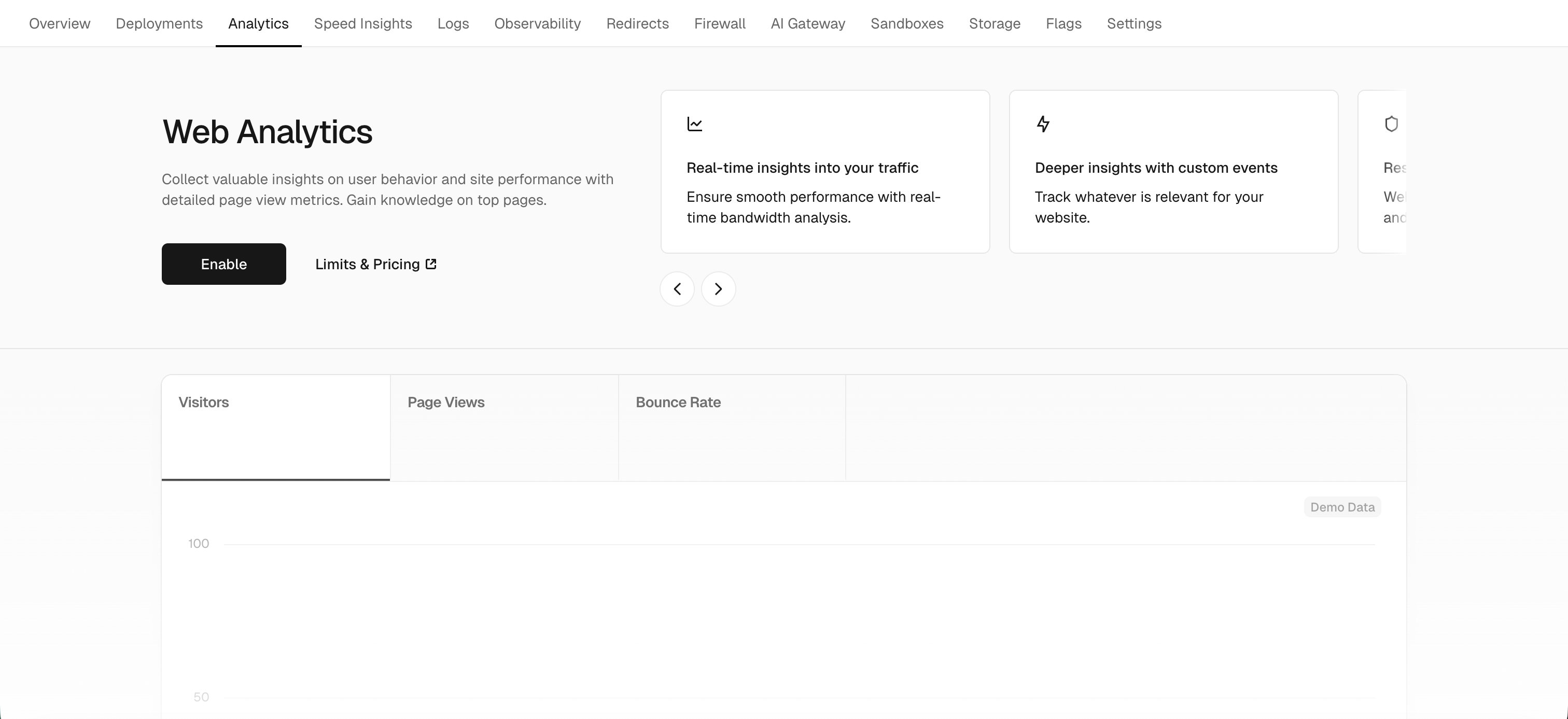
Note: Enabling analytics in the dashboard alone is not enough. You must complete the next steps to activate it properly.
Step 2: Install the Vercel Analytics Package
Open your Next.js project and run the following command from the root directory:
npm i @vercel/analytics
This installs the official Vercel Analytics library.
Step 3: Add the Analytics Component to Your App
Now, add the Analytics component to your root layout file.
Open app/layout.tsx and update it like this:
import { Analytics } from '@vercel/analytics/next';

export default function RootLayout({
  children,
}: {
  children: React.ReactNode;
}) {
  return (
    <html lang="en">
      <head>
        <title>Next.js</title>
      </head>
      <body>
        {children}
        <Analytics />
      </body>
    </html>
  );
}
This ensures analytics are loaded across all pages of your app.
Step 4: Deploy Your Changes to Production
Once the setup is complete, you need to deploy your project. You have two options:
Option 1: Deploy via GitHub
If your GitHub repository is connected to Vercel:
- Commit your changes
- Push to the main branch
Vercel will automatically deploy your app.
Option 2: Deploy Using the Vercel CLI
If you prefer deploying from the command line:
-
Install the Vercel CLI globally:
npm i -g vercel -
Deploy your project:
vercel deploy
That’s it! Your app is now live with analytics enabled.
Viewing Analytics Data
After deployment:
- Go to the Vercel dashboard
- Select your project
- Open the Analytics tab
You’ll start seeing visitor counts and page views as traffic comes in.
Advanced Analytics (Pro & Enterprise Plans)
Users on Pro and Enterprise plans can also:
- Track custom events
- Measure button clicks
- Monitor form submissions
- Analyze purchases and user interactions
Ready to build something great?
Schedule a free call to validate your idea and next steps. We are providing end-to-end development services for startups, solo founders and growing businesses.
Contact Us